NewYour AI employee is one email away →

Nov 2 to 8

194 changes16 headlines114 features64 small

Headlines 16

Viktor app

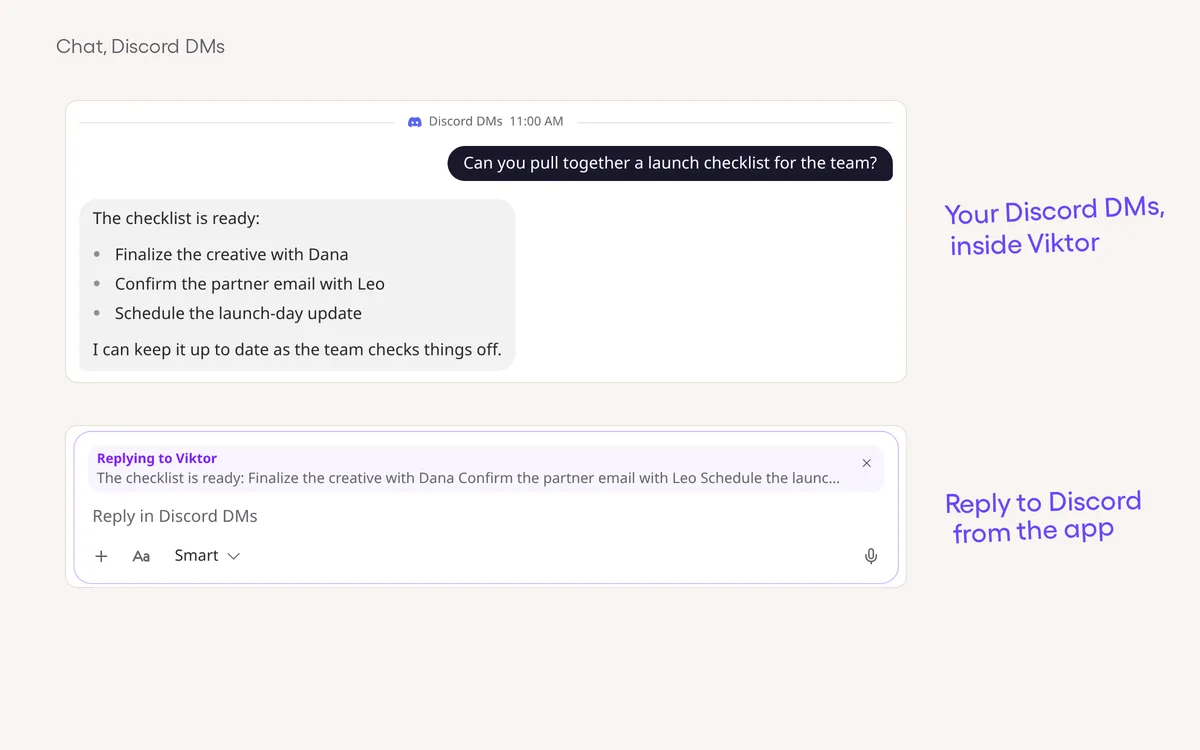
Reply to Discord DMs from your Viktor chatYour own Discord DM with Viktor can now appear in the Viktor chat after you link your Discord account.

Viktor app

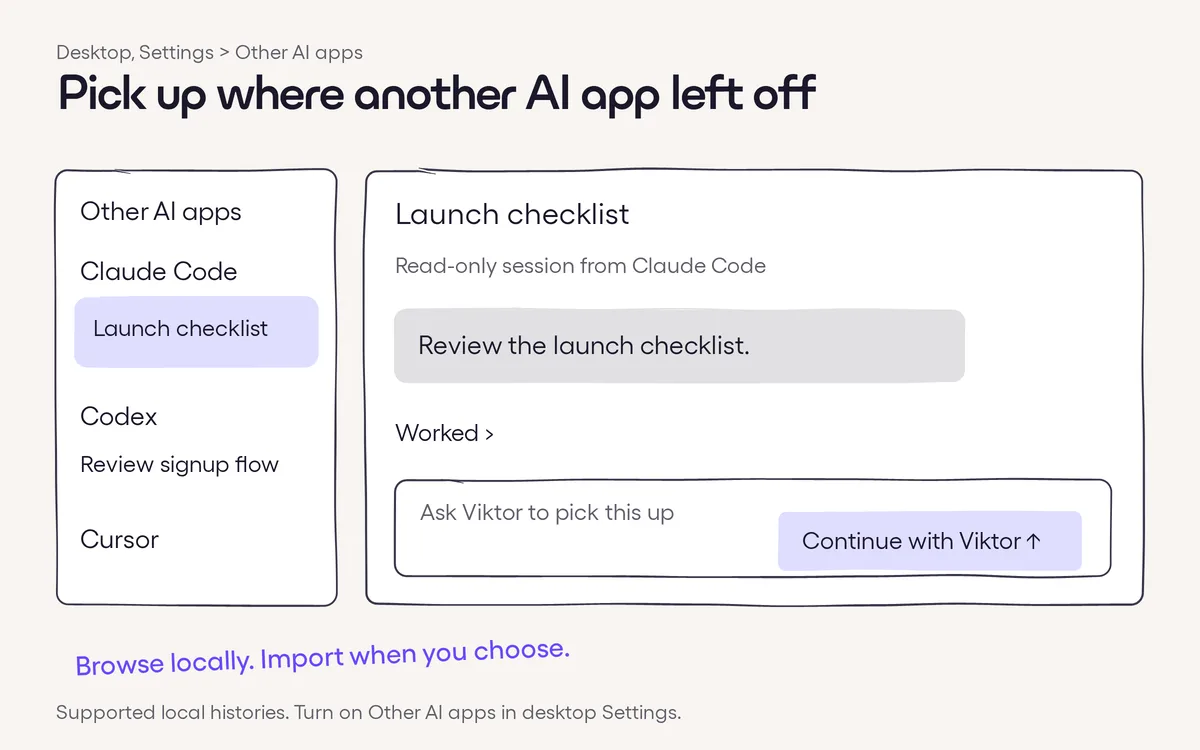
Pick up another AI app’s work with ViktorTurn on Other AI apps in desktop Settings to browse supported apps’ local conversations.

Agent smarts

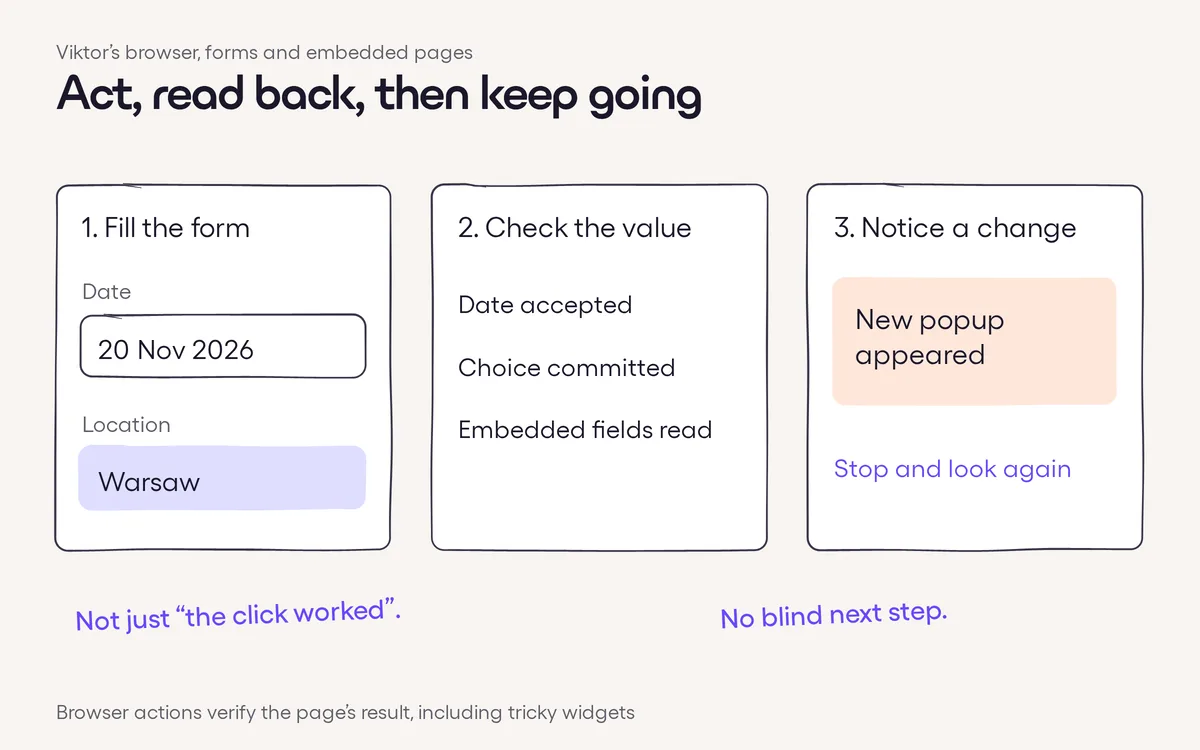
Browser actions that check what actually happenedViktor can fill date pickers, autocomplete fields and dropdowns, then check the value the page kept.

Slack, Teams & email

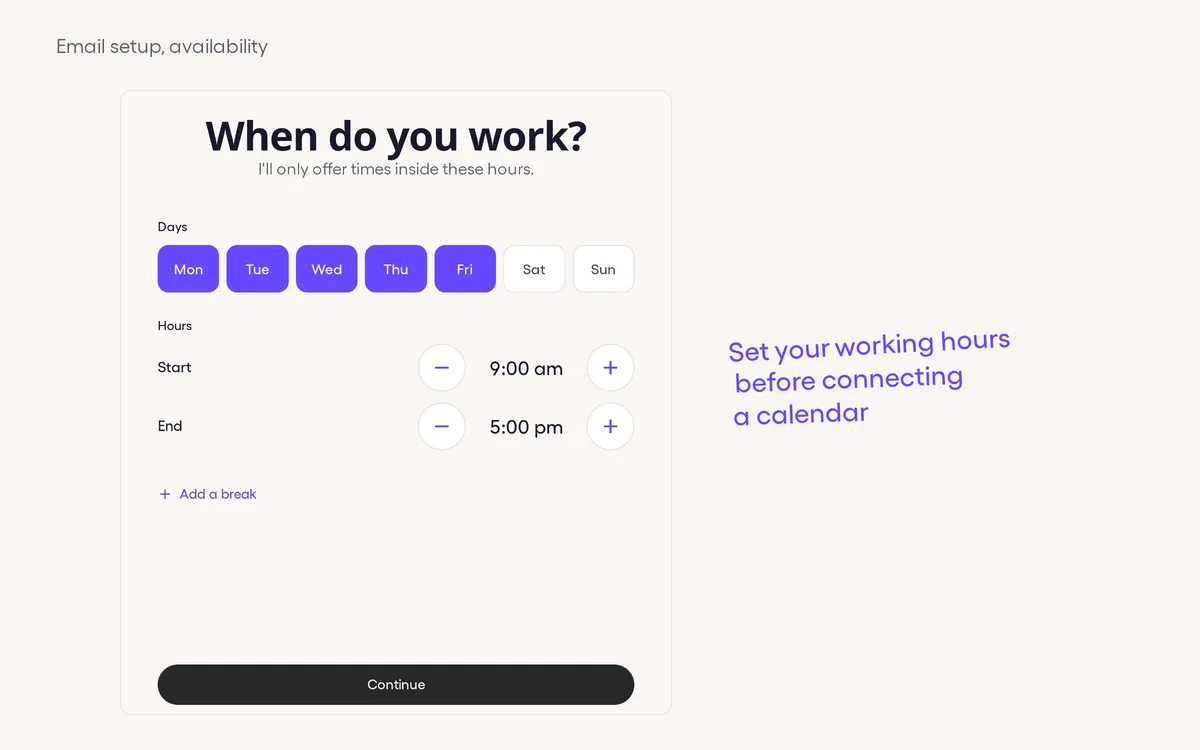
Start working with Viktor by emailEmail Viktor a job, set your availability and connect your calendar in a guided setup, then keep working in the same email thread.

Agent smarts

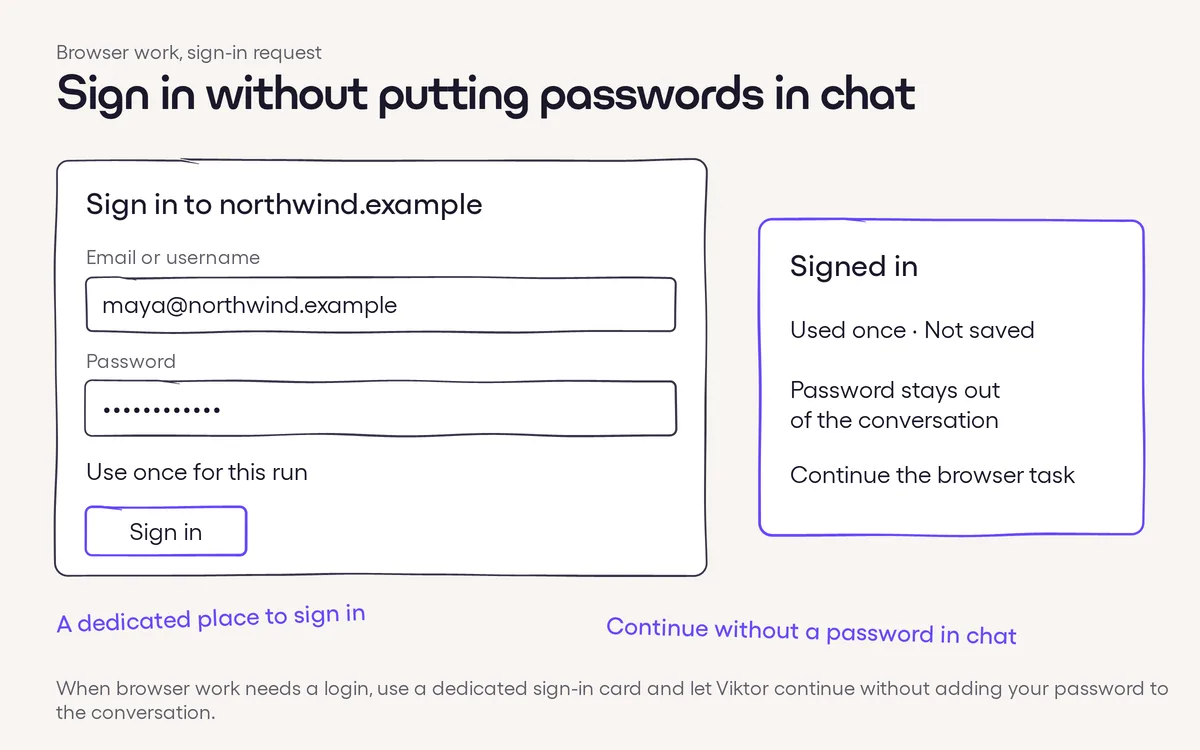
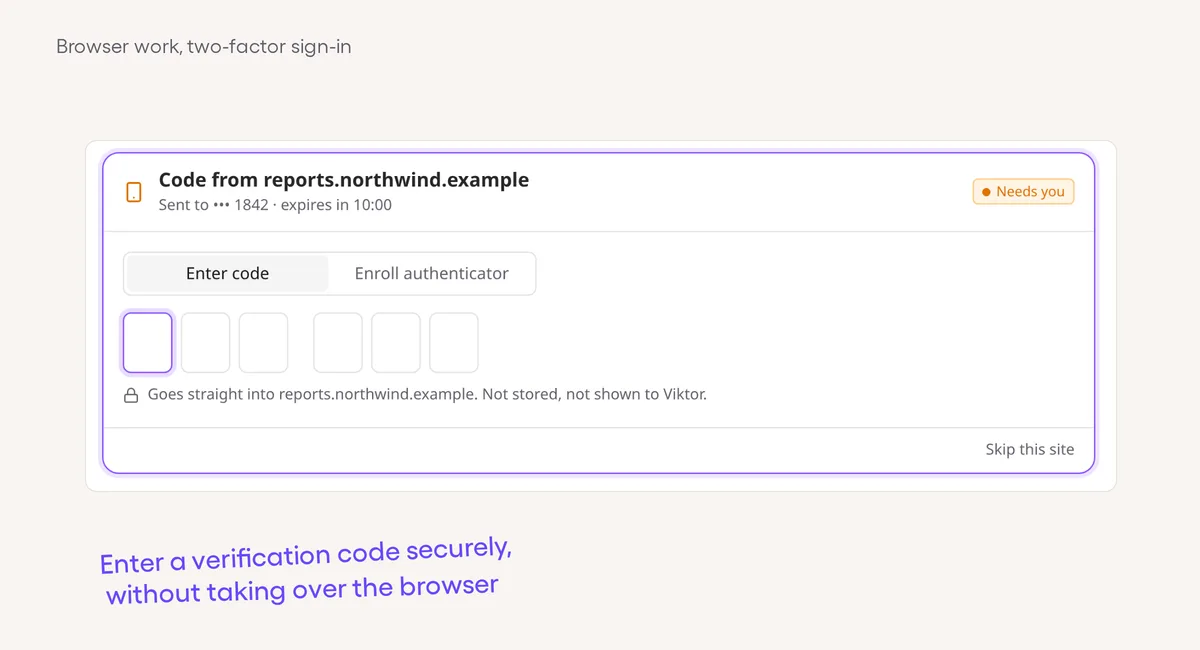
Sign in without putting passwords in chatWhen browser work needs a login, use a dedicated sign-in card and let Viktor continue without adding your password to the conversation.

Viktor app

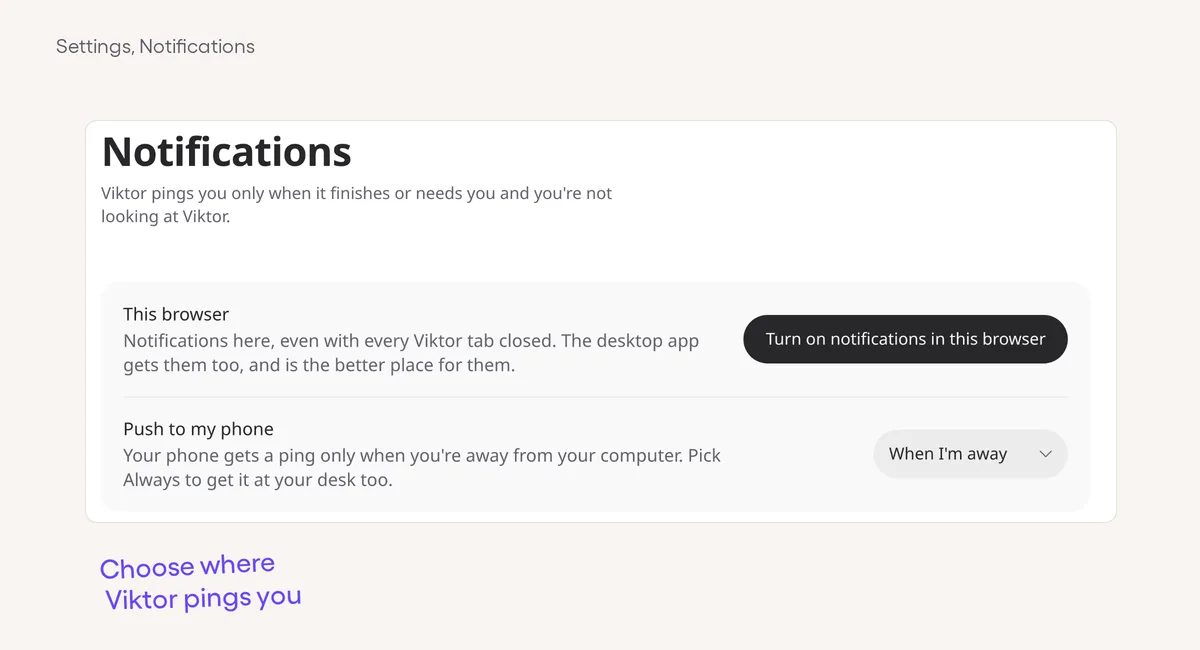
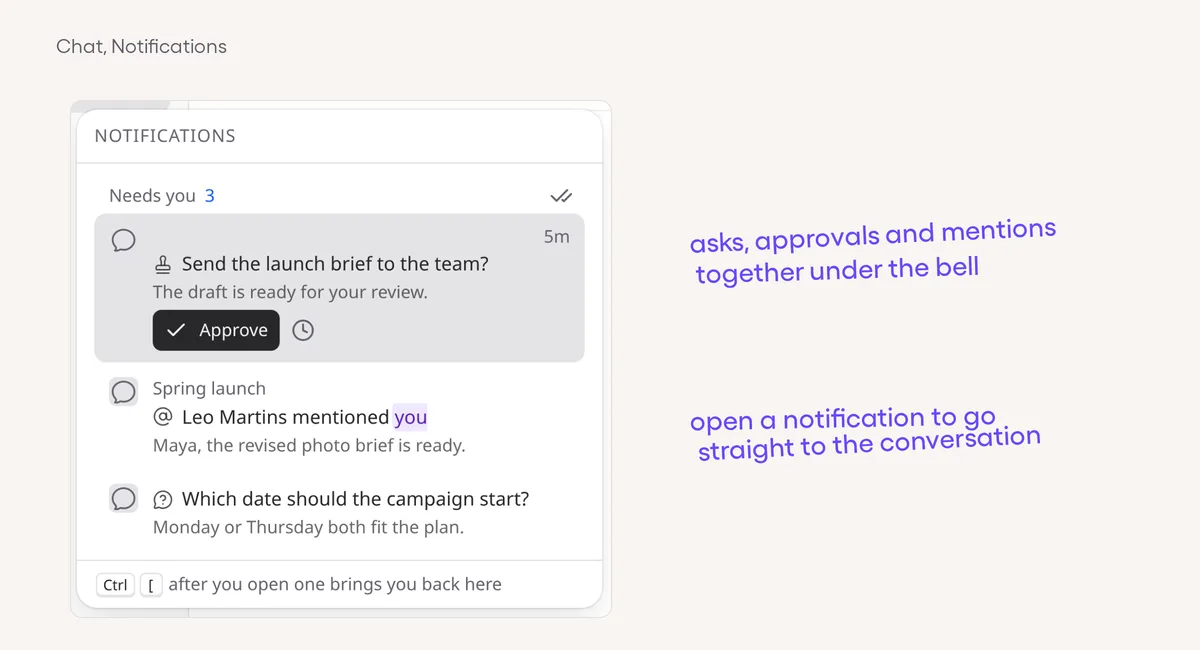
Reply notifications can reach you across devicesReply and project-mention notifications can reach your browser, desktop and Android app without depending on the notification sidebar.

Viktor app

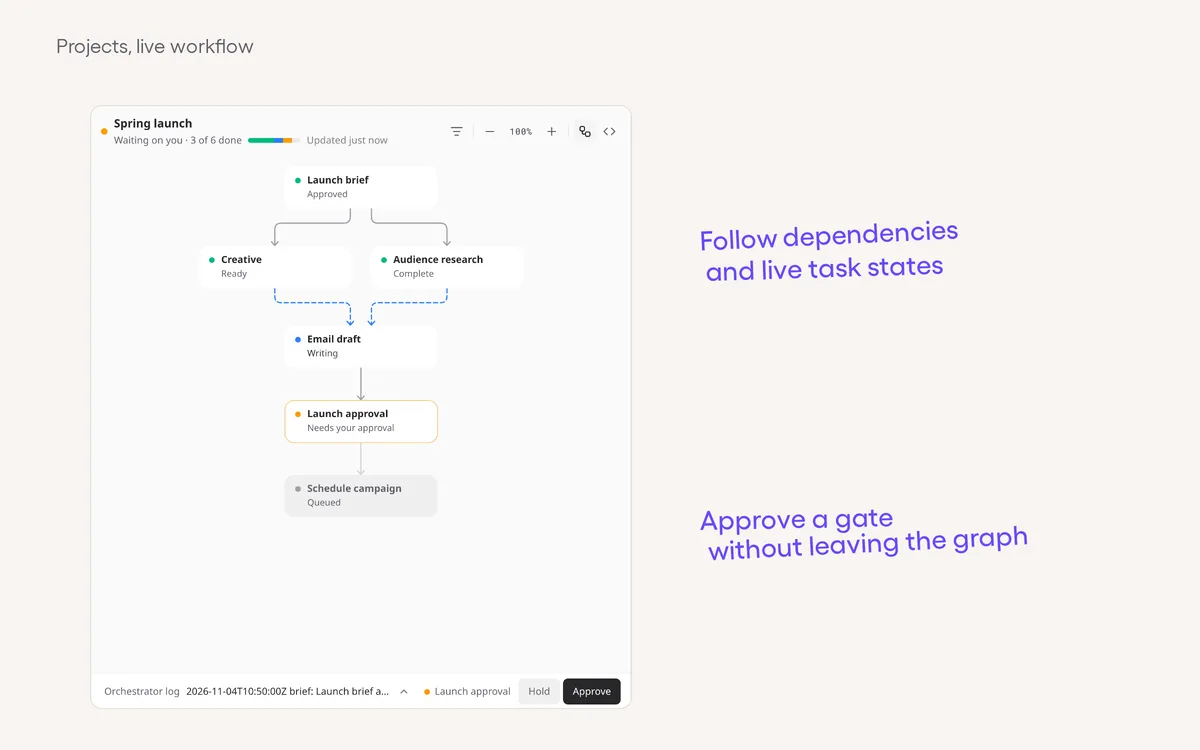
Follow a project's work as a live graphSee dependent tasks, retries and approval gates in a live project workflow, and open the run behind any task.

Agent smarts

Browser sign-in can handle the second factorViktor can use a saved authenticator key or your own email to finish browser sign-in, with an inline code card when your help is needed.

Viktor app

Notifications follow you between devicesViktor uses your activity to route notifications to your computer or phone, rather than pinging every device while you are already in the app.

Viktor app

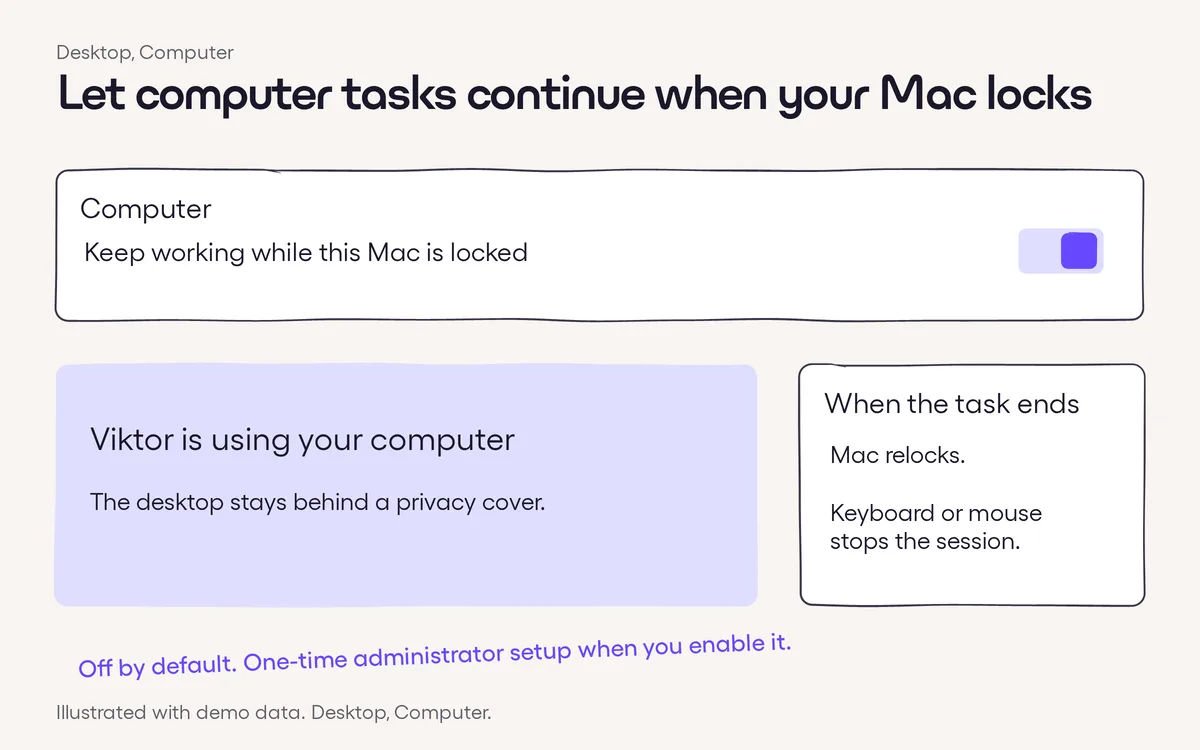
Let computer tasks continue when your Mac locksOpt in to let Viktor continue an ongoing computer-use task after your Mac locks or its screen turns off.

Integrations

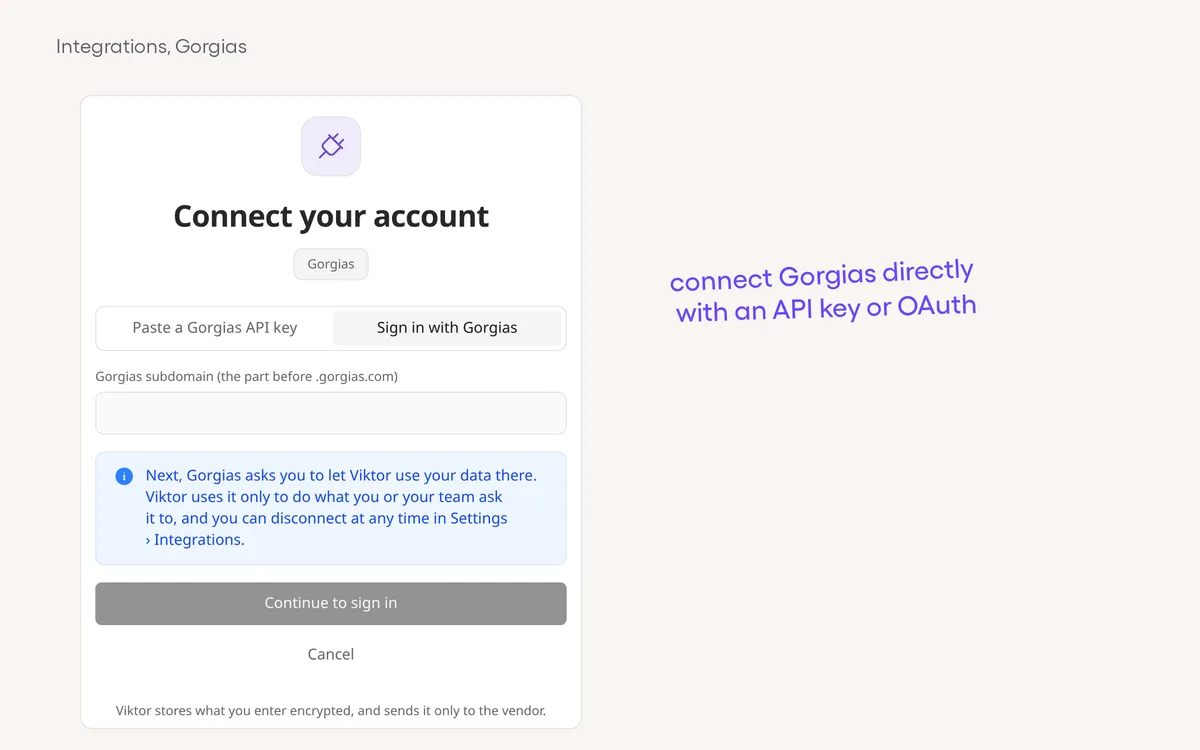
Connect Gorgias with a sign-in or API keyConnect Gorgias with OAuth instead of copying an API key. The key option is still there if you prefer it.

Agent smarts

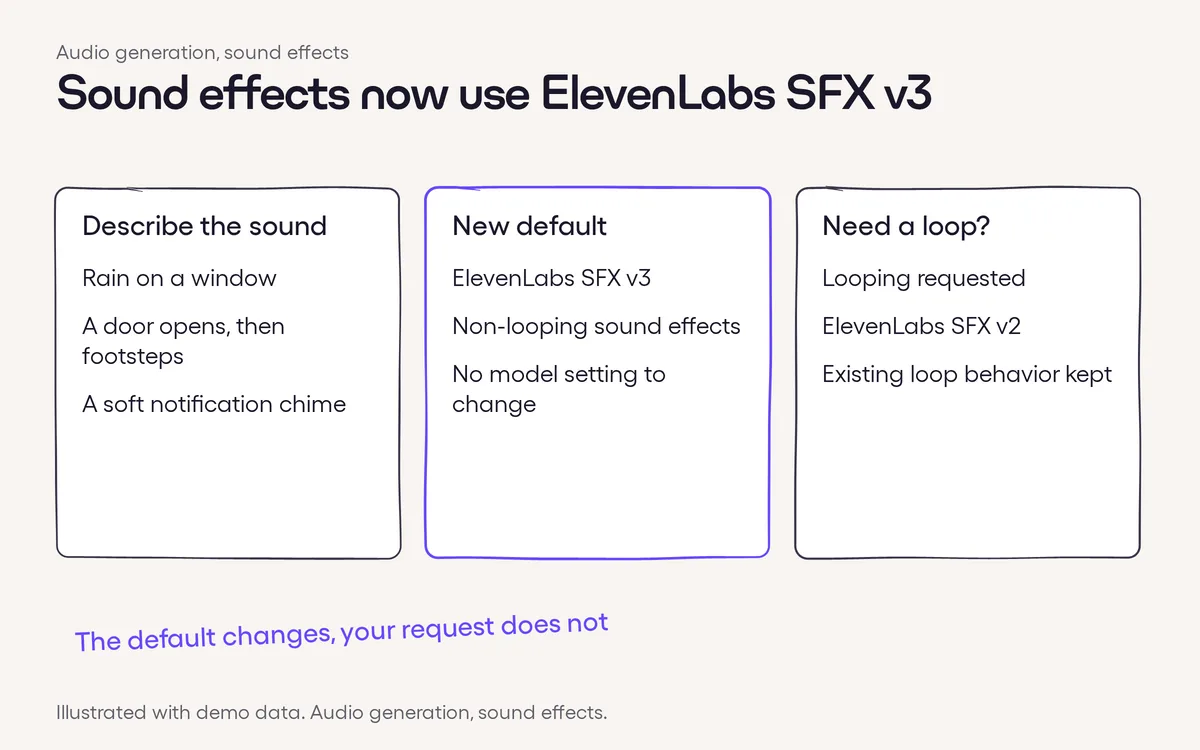
Sound effects now use ElevenLabs SFX v3New non-looping sound effects use ElevenLabs SFX v3, the successor to v2.

Integrations

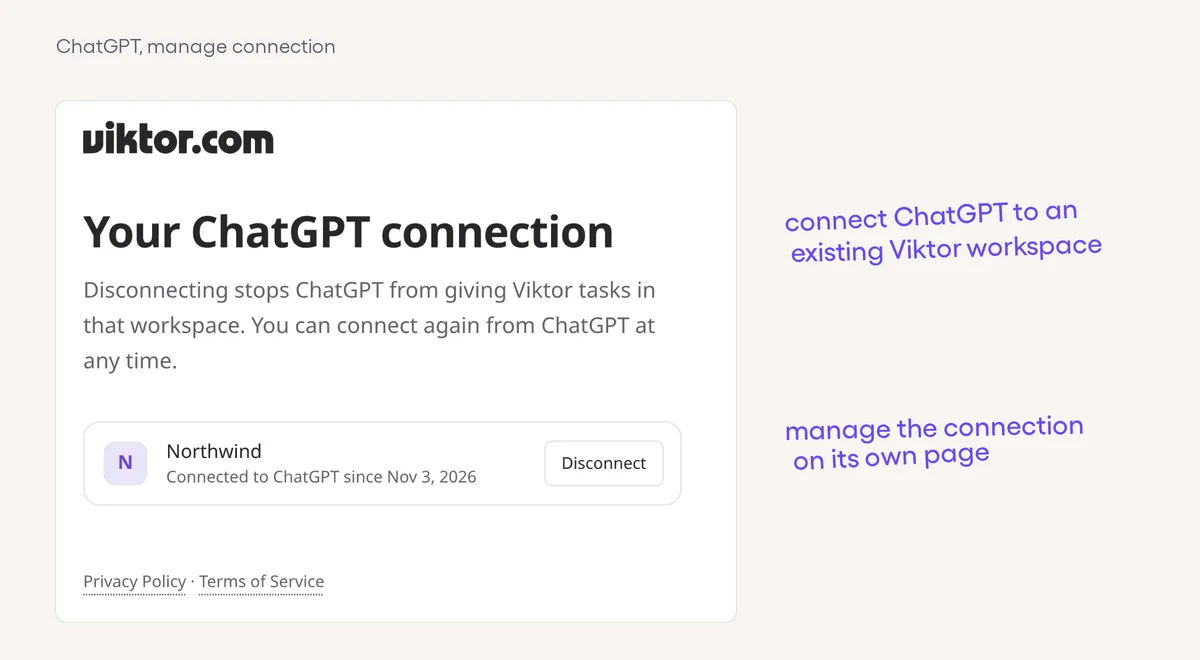
Connect an existing Viktor workspace to ChatGPTChatGPT can connect to your existing Viktor workspace through a dedicated OAuth flow, without copying a Viktor API key.

Viktor app

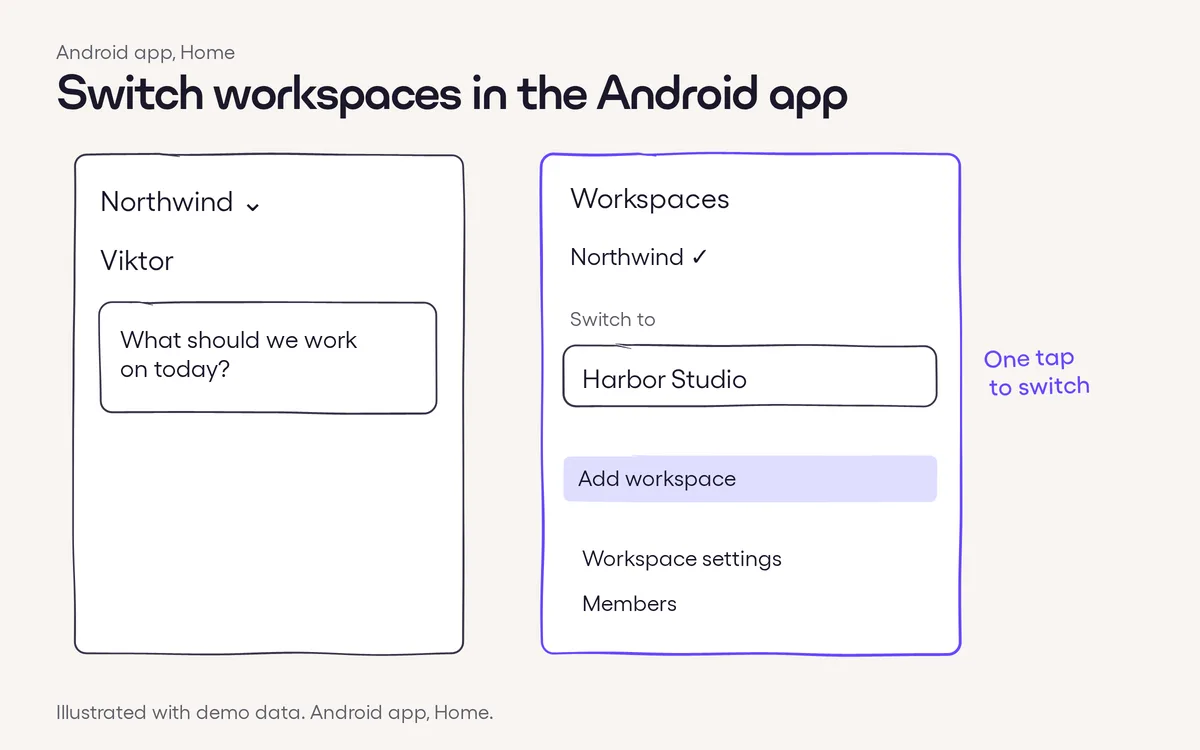
Switch workspaces in the Android appTap the workspace name on Home and choose another workspace without signing out.

Viktor app

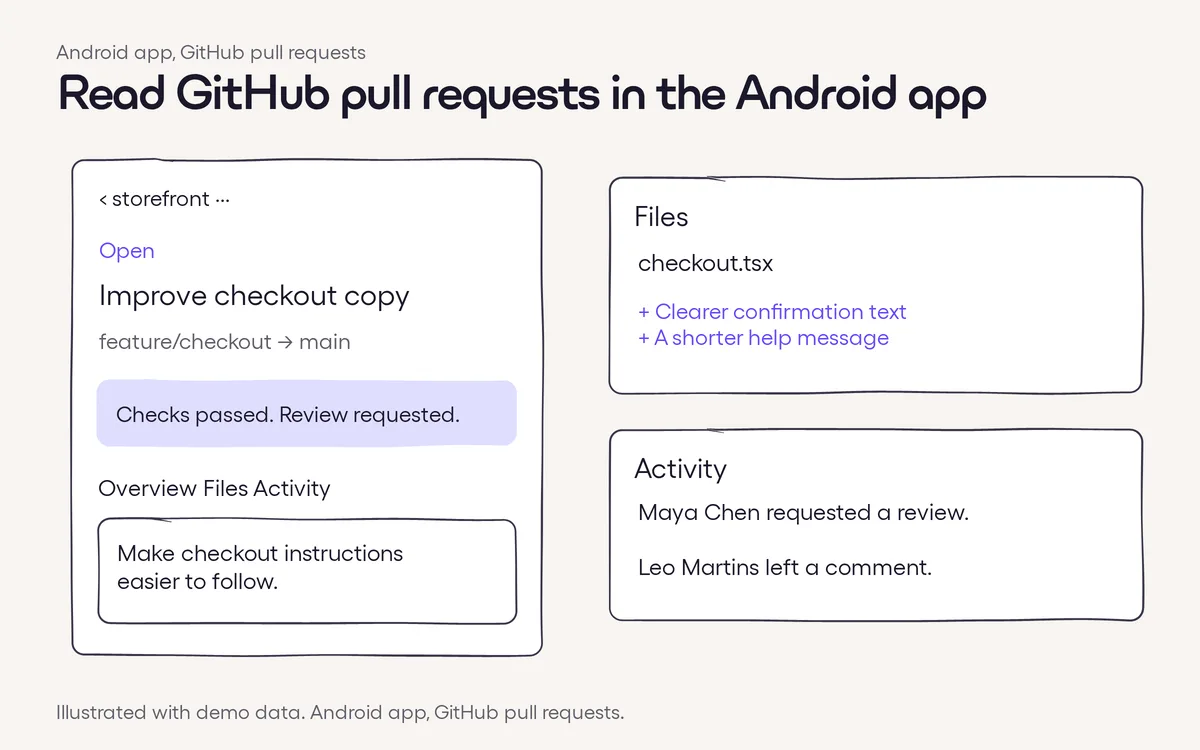
Read GitHub pull requests in the Android appTap a GitHub pull request link to read its summary and status inside the Android app.
Features 114

Viktor app41 features
Desktop11 features
Agent smarts13 features
Integrations20 features
64 small improvementsOne line each, from the daily roundups
Slack and Teams
  • Less startup delay. Viktor prepares integrations ahead of the first reply, reducing cold-start waiting in Slack and Teams.
Web app
  • Clearer unread threads. Reply-thread names stand out in bold, with replier faces side by side and an overflow count when space runs out, in the web and desktop apps.
  • Faster tool permission pages. API-key tool permission pages load faster in workspaces with many integration accounts, without changing runtime permissions.
  • Finished, visibly. Short completion animations make finished runs, tasks and approvals easier to notice on web and desktop.
  • Easier reading. More consistent line spacing, wrapping and soft grey bubbles carry across chats and the desktop pocket.
  • Simpler sidebar. Find notifications beside Viktor DMs, search in the footer and New chat in the Chats menu on web and desktop.
  • Straight into Settings. Settings opens to My account on the web and General on desktop.
  • Tabs with a preview. Hover over a side-pane tab to see what it holds before opening it.
  • Steadier streaming tables. Tables in web and desktop replies appear one complete row at a time, reducing layout jumps as Viktor writes.
  • Feedback for slow media. Images and videos in the full-screen viewer on web, desktop and Android show a spinner after a second of waiting, instead of leaving you with a blank view.
  • Archived items on their own. Show archived switches a sidebar section to just its archived projects or chats, with one hover action to restore a row.
  • Project details on hover. Hover over a project's title to see its full name, owner and description.
  • Steadier Marketplace loading. Loading placeholders match the page layout, search suggestions ease into place and installed checks are easier to see.
  • A simpler workflow toolbar. Workflow graphs put filtering, expand and fold, zoom, Graph and Source in a compact icon toolbar.
  • Share a project link. Copy link is now in the project’s sidebar menu and Members tab, with a reminder that only people with access can open it.
  • Fold your project lists. Collapse the project sections in the sidebar while keeping your current project in view.
  • Notifications by keyboard. Cmd+Shift+M opens the notification bell, and arrow keys, Home and End move through the list.
  • Lighter rich cards. Rich cards use a calmer grey design, take less room and bring highlighted items to the front.
  • One home for Viktor’s mentions. Viktor’s project mentions appear in the notification bell instead of repeating his face on sidebar rows.
  • Know who you’re looking at. Hover over a teammate’s name or face to see their name and work email, when they’re a member of your workspace.
  • Copy the full pane link. Use Copy link on a document, page, pull request or deployed app tab to copy its full URL.
  • See which projects need you. Project rows go bold for open asks and show their count, rather than using bold for every unread update.
  • Steadier loading. The project sidebar remembers its previous row layout and fades matching placeholders into real projects, keeping the chats below from jumping.
  • Viktor in the @ menu. Find Viktor first when you type @ in app chat, then insert a distinct mention chip.
  • Keep text at laptop size. Turn off Scale chat text with window size in Appearance settings to stop chat text growing on wider web and desktop windows.
  • Reasoning, out in the open. Model presets show their reasoning level beside the model name instead of hiding it in a tooltip.
  • Know where a drop goes. Project canvas drags show Add to canvas for pictures and Move to the destination row when moving a page in Layers.
  • Boards get to the point. Task boards open on their tasks, with a status line only when it adds something and lasting choices kept in Decided.
  • Working looks different. Working project avatars have more focused motion, with consistent timing and support for reduced motion.
  • Find the Android app. The phone-linking dialog shows “Get it on Google Play” when opened in an Android browser before a phone is linked.
Mobile
  • Confirm a status-line stop. In the Android app, tapping the status line’s Stop asks “Stop Viktor?” before ending the run. The round Stop button in the composer still stops immediately.
  • A finished working ring. In the Android app, a project's working ring briefly closes when its run finishes, with reduced motion respected.
  • Copy project links on Android. Use Copy link in a project's row menu or Members sheet to share its link with someone who already has access.
  • Quieter Android restarts. Restarting into an Android app update keeps the current screen visible through the hand-off.
  • Preview a notification. The Android app’s simpler notification permission sheet shows a sample notification before you turn it on.
  • Copy a support reference. In the Android app, tap a failed run’s Ref line to copy the reference for support.
  • Shorter pull request links. The Android app shows GitHub pull request URLs as compact chips with their number and state.
  • Workspace links in Settings. Open Scheduled tasks, Integrations, Messaging and Docs on the web from the Android app’s Settings; you may need to sign in there.
  • Pinned projects have a home. The Android home screen groups pinned projects in their own Pinned section, above the rest of your projects.
  • Keep the name separate from the goal. The Android app’s New project form has a separate optional Name and a required Goal, so the title doesn’t become the instruction.
  • Pick a project icon. In the Android app, open a project row’s menu, choose Change icon and tap a glyph to save it.
Integrations
  • Clearer account choices. When an app has multiple shared native connections, Viktor gets their account names and connection choices together, making it easier to choose the right account or ask you.
  • Your accounts first. An integration's account list puts your own connections first and labels them You.
  • LaunchDarkly through Zapier. New LaunchDarkly connections use Zapier where it is available, while existing connections keep working.
  • More Freshdesk API coverage. Your Freshdesk connection can use legacy helpdesk API paths alongside the current API.
  • Less Bright Data setup. If Bright Data's default Web Unlocker zone is missing, Viktor can create it with a key that has the right access and retry the request.
  • One Help Scout route. New Help Scout connections steer you to Viktor’s own connector instead of duplicate catalog entries, while existing connections stay as they are.
  • One Close route. New Close connections steer you to Viktor’s own connector without changing existing connections.
  • Phone-only Hyros calls. Create a Hyros call with a name and phone number instead of an email address, and pass an external ID when you have one.
Desktop
  • Recognize a project. Project icons appear beside their names in the tray's Recent chats list.
  • Links that land where you need them. Desktop project links can open in the app, and links to a specific ask can jump to its message on web and desktop.
  • Menu-bar status on Mac. A dot shows when Viktor is working, followed by a brief check when the last job finishes successfully.
  • A tighter search palette. Desktop search uses a compact layout and the same subtle frosted appearance as the web app.
  • Smoother resizing. Long chats do less layout work while you drag the side pane or resize the desktop window.
  • Close the pane tab first. Cmd+W or Ctrl+W closes a visible, closable side pane tab before the desktop or installed web app window; ordinary browser tabs keep their usual shortcut.
  • A clearer Mac installer. The Mac install window now shows a Drag to Applications note and an arrow to make the next step obvious.
Agent
  • Failures don't hide behind the shell. Viktor can spot integration-script failures even when the surrounding command reports success, and recover from more GitHub command argument mistakes.
  • iMessage read receipts. Your iMessage conversation is marked read when Viktor picks up your message, rather than staying on Delivered while he works.
  • Keep the Space, remove the hub link. As the project's creator, ask Viktor to unlink its hub without deleting the underlying Space.
  • One useful team update. Viktor collects team-request progress into a summary instead of posting each report separately, while still speaking up when something needs you.
  • Quieter pull request watches. Default project watches collect passing checks into a digest, while failures and reviews still wake Viktor. Explicitly requested watches still report passing checks right away.
Spaces
  • Calmer deploy bursts. When several Spaces deploy together, excess deploys wait their turn to avoid overwhelming the workspace sandbox.
  • Wait out integration pauses. On their next deploy, eligible Spaces with the prepared upgrade can pace later integration calls through temporary pauses instead of repeatedly hitting the same limit.
Admin and billing
  • Faster usage pages. Usage overviews, top-user lists and channel-filtered charts load faster.
Get Started for Free