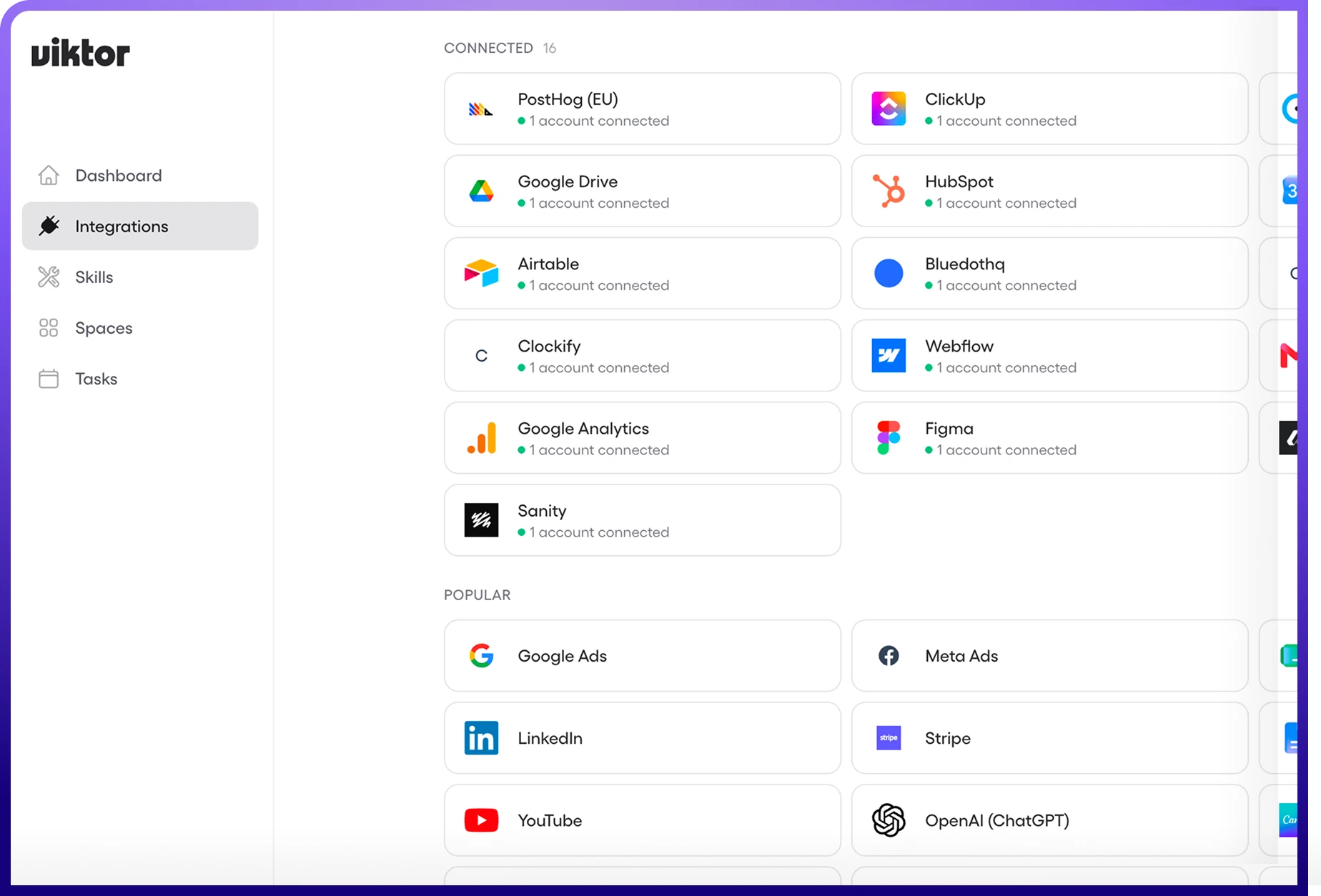
Viktor can already think, write, and research from anything you paste him.
The moment you connect your real tools, he stops being a smart assistant and starts acting on your behalf in the software your business actually runs on.
Connecting your stack is the single biggest upgrade you can give him.
By the end you should know how to
- Understand what integrations unlock
- Connect any tool with the one-click flow, whatever tier it lives in
- Know what a token is, and why a connection sometimes needs reconnecting
- Manage multiple accounts and team access
- Know when to ask Viktor support versus the tool's own support
- Troubleshoot common connection issues yourself

 Get started for free
Why connect your tools
An unconnected Viktor can think, write, and research. A connected Viktor can act. That is the line between a smart assistant and an actual employee, and the only thing standing between the two is a one-click connection to the tools your business already runs on.
Same request, before and after you connect Gmail:
Without integrations
- You: "Draft me an email about the product launch."
- Viktor writes the text and pastes it back in your chat.
- You copy it, open Gmail, add recipients, and send it yourself.
With integrations
- You: "Send an email about the product launch to our beta users."
- Viktor drafts it and shows a preview.
- After you approve, he sends it from your Gmail.
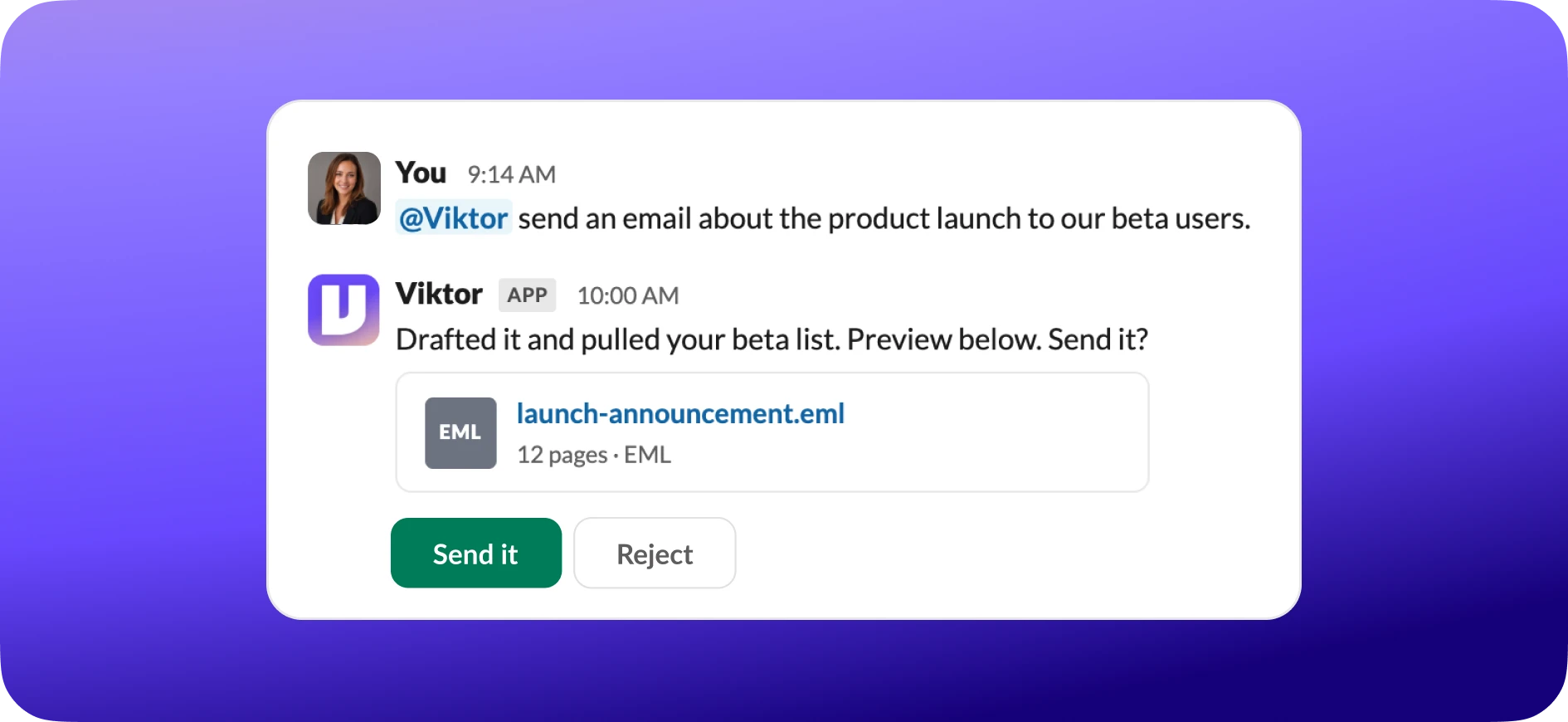
Here is what connecting a few tools unlocks:
The whole idea
Integrations are what turn a smart assistant into an actual employee. Thinking and writing are table stakes. Acting on your behalf, in the tools your business runs on, is the part that gives you back real hours.
How integrations work
One-time setup, about 30 seconds. The first time Viktor needs a tool, he walks you through it:
Connect once, not every time
Once you authorize a tool, Viktor remembers it. You do not reconnect every time, until the token expires.
What is a token, and why does a connection sometimes need reconnecting?
When you connect a tool, it hands Viktor a token: a digital keycard, not your password. That keycard is what lets him act on your behalf. Like any keycard, it can stop working, and when it does, reconnecting is all it takes to issue a fresh one. Nothing is broken. Here is the mental model:
The three integration tiers
Viktor reaches 3,200+ tools through three tiers. They differ in depth, not in how you connect them.

Native
Built in. The tools Viktor knows best, with the deepest functionality: Gmail, Drive, Notion, Stripe, Salesforce, and more.

Extended library
Covers most of the popular tools teams use: Hootsuite, Constant Contact, Jotform, SurveyMonkey, and many more.

Specialized connectors
For specific platforms: HubSpot, Instagram, YouTube, WhatsApp, Reddit Ads, and others.
You do not need to know the tier
Just ask Viktor for the tool you want. He finds the right connection and walks you through it. Native tools generally offer the deepest functionality, but the way you connect is the same across all three.
Connecting your first integration
There are two ways to connect a tool. Most people never leave their chat.
How
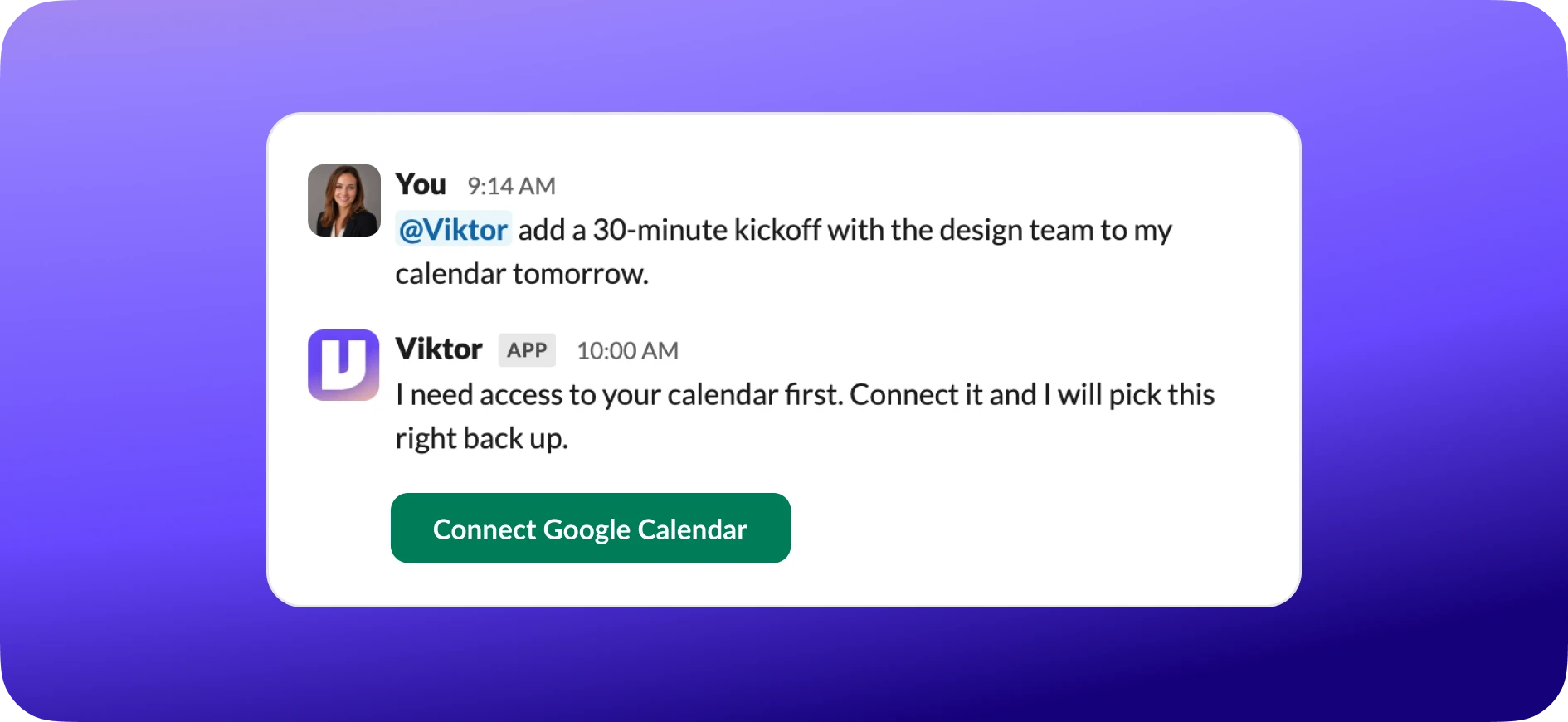
Just ask Viktor right in your chat what you want done. If a tool is not connected yet, he sends a Connect button right there (Slack or Teams).
Method 1: Viktor prompts you (recommended)
- 1Ask Viktor to do something that needs a tool.
- 2Viktor sends a Connect button right in your chat (Slack or Teams).
- 3Click it and authorize in your browser (Allow).
- 4Viktor picks up where it left off.
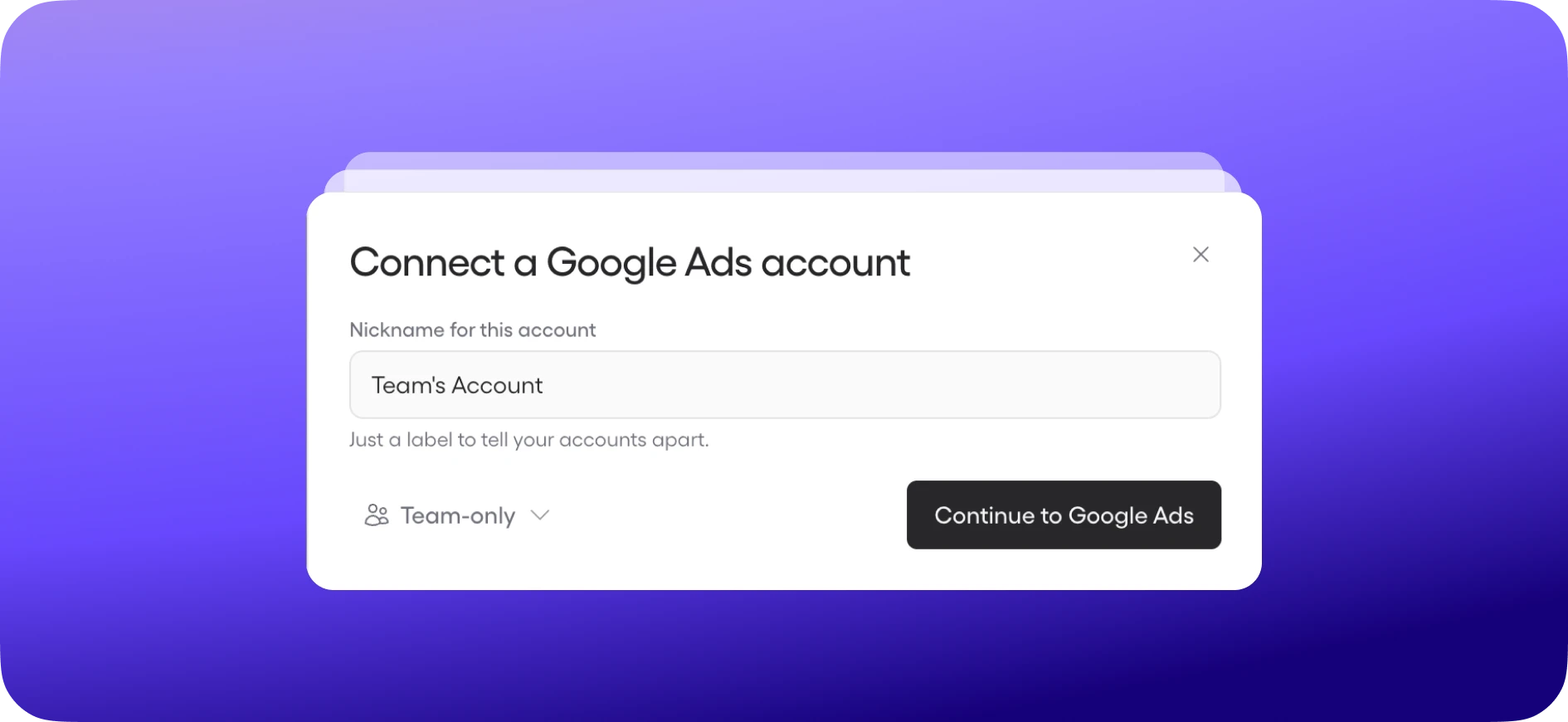
Method 2: connect from settings
- 1Go to app.viktor.com/integrations.
- 2Browse or search across all 3,200+ integrations.
- 3Click Connect and authorize.
Connect ahead of the work
If you know you will want email, calendar, and file management, connect Gmail, Google Calendar, and Google Drive upfront so Viktor is ready the moment you ask. Connecting your tools early is also one of the fastest ways to pad your credit balance: new workspaces earn bonus reward credits for the first tools they connect.
The most popular integrations
The connections most teams reach for first, and what each one unlocks:

Gmail
Send, draft, and read email. Search your inbox, manage labels, build workflows.

Google Drive
Create, edit, and share Docs, Sheets, and Slides. Upload and organize files.

Google Calendar
Create events, check availability, send invites, manage recurring meetings.

Post, engage with comments, manage personal and company pages.

Hootsuite
Schedule across platforms, run a content calendar, track publishing.

Constant Contact
Run campaigns, manage contact lists, track open rates.

Stripe
Look up transactions, generate reports, track revenue.

Notion
Search, create, and update pages, databases, and your knowledge base.

GitHub
Clone repos, manage branches, open pull requests, track issues.

HubSpot
Manage contacts and deals, build reports, automate CRM workflows.
Don't see your tool?
Ask Viktor "Can you connect to [tool name]?" and he searches the full library or sets up a custom API connection.
Permissions and approval controls
You decide how much Viktor can do on his own. Every integration runs in one of three modes:

Auto-Run
Viktor acts without asking. Best for low-risk, high-frequency tasks like "check my calendar."

Ask First
Viktor shows what it wants to do and waits for approval. Best for sensitive actions like "send this email."

Disabled
Viktor cannot use the integration even if connected. Good for pausing access.
Set this per integration, per user, even per tool. Gmail alone has "send email," "read email," and "search inbox." Manage it all at app.viktor.com/integrations, or just tell Viktor "Change Gmail send email to ask first."
A mental model for permissions
Think of it as confidence, not caution. Start most tools on Ask First while you learn how Viktor works. Move the low-risk, high-frequency ones (checking a calendar, reading a doc) to Auto-Run as you build trust. Reach for Disabled when you simply want to pause a tool without disconnecting it. You can change any of this at any time.
Custom API connections
For internal, niche, self-hosted, or brand-new tools that are not in the library yet, Viktor can connect directly with an API key.
How it works:
What you need: an API key or access token, the base URL if self-hosted, and a one-line description of what you want Viktor to do.
Keep keys safe
API keys are stored encrypted, like OAuth tokens. Never share keys in public channels. Send them to Viktor in a direct message, or add them at app.viktor.com/integrations. Most teams never need this. The 3,200+ library covers the vast majority of use cases.
Tips for better results
Do
- Connect tools before you need them.
- Use clear labels for multiple accounts.
- Start in Ask First mode.
- Tell Viktor which account to use.
- Reconnect promptly when asked.
Don't
- Connect more than you need.
- Ignore expiration notices.
- Share sensitive connections team-wide.
- Assume all tools are equal. Native tools run deeper than the extended library or specialized connectors.
- Change passwords without reconnecting afterward.
Who to contact for help
When something goes wrong, the fix is faster if you know who owns the problem.
Contact Viktor support
support@viktor.com, or message Viktor right in your chat
- The connection itself is broken: says "not connected" but you connected it, the Connect page errors, a connected tool is not seen.
- Viktor behaves unexpectedly: wrong account, ignoring permissions, worked yesterday but not today.
Contact the tool's support
the company that makes the tool
- The tool itself has a problem: it is down for everyone, account suspended, you hit its rate or plan limits.
- Account or billing issues: expired plan, verification, password change.
A simple test
Can you log in to the tool directly? No, the tool is down, contact the tool. Yes, contact Viktor support. Not sure? Just ask Viktor. He diagnoses token versus service issues.
Troubleshooting
When something goes wrong, the fix is faster if you know who owns the problem.
Contact Viktor support
support@viktor.com, or message Viktor right in your chat
- The connection itself is broken: says "not connected" but you connected it, the Connect page errors, a connected tool is not seen.
- Viktor behaves unexpectedly: wrong account, ignoring permissions, worked yesterday but not today.
Contact the tool's support
the company that makes the tool
- The tool itself has a problem: it is down for everyone, account suspended, you hit its rate or plan limits.
- Account or billing issues: expired plan, verification, password change.
A simple test
Can you log in to the tool directly? No, the tool is down, contact the tool. Yes, contact Viktor support. Not sure? Just ask Viktor. He diagnoses token versus service issues.
Ready to give Viktor his first tool?
The fastest way to start is to ask. Tell Viktor what you want to do, and if a tool needs connecting he walks you through it in seconds.
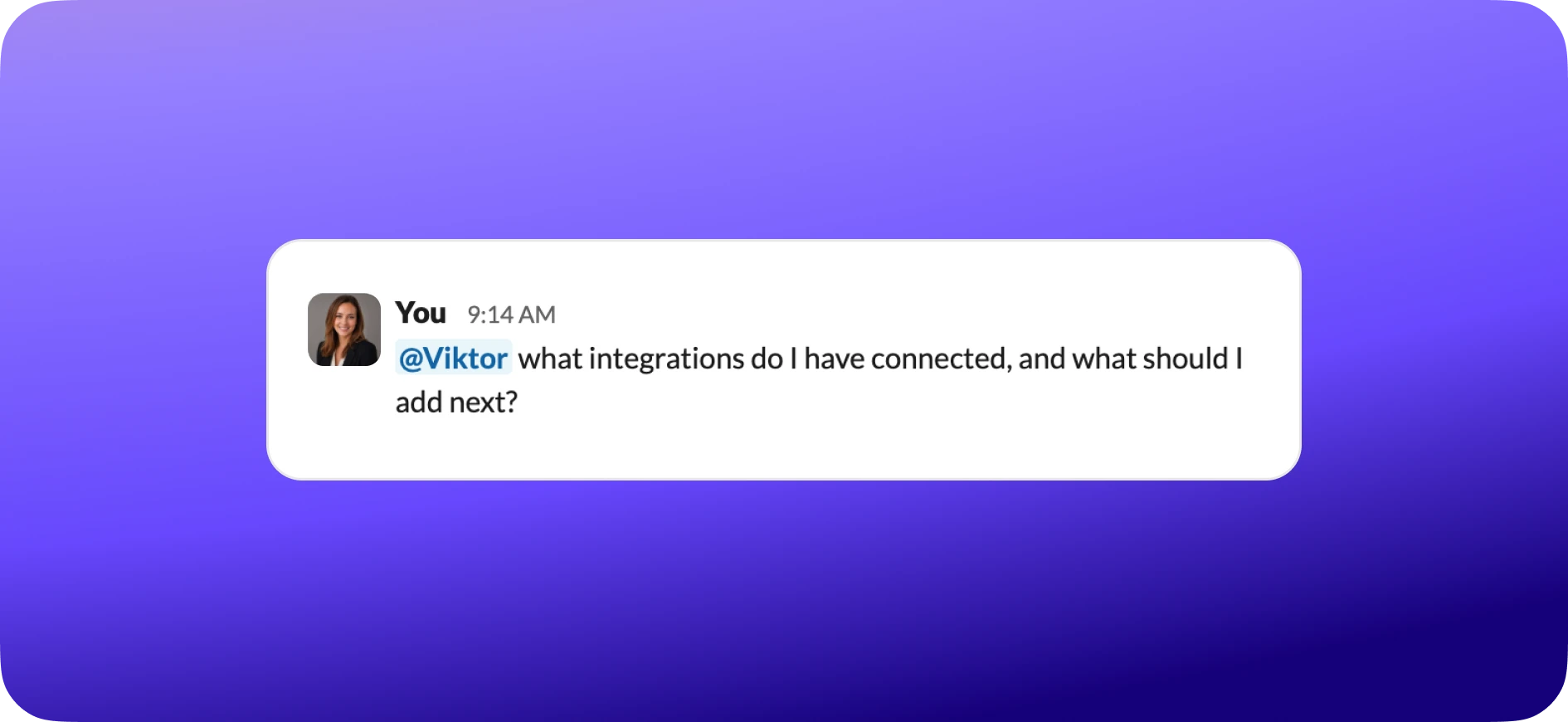
After the intro, I tell everyone the same thing: "Use Viktor the way you would message a new team member. Be specific about what you want, tell it when you want it done, and check the first few results." The teams that follow this are fully autonomous by end of week.