The morning a report shows up without you lifting a finger is when most people finally get it.
A scheduled task is just standing work you hand Viktor once. He runs it on schedule, every time, online or not, and brings you the result. Viktor calls these scheduled tasks. You may also see the word cron, the technical name for the same thing.
By the end you should know how to
- Understand what a scheduled task is
- Tell script crons from agent crons, and when to use each
- Set up your first scheduled task in plain English
- Use condition scripts to avoid wasting credits
- Pick the right schedule and frequency
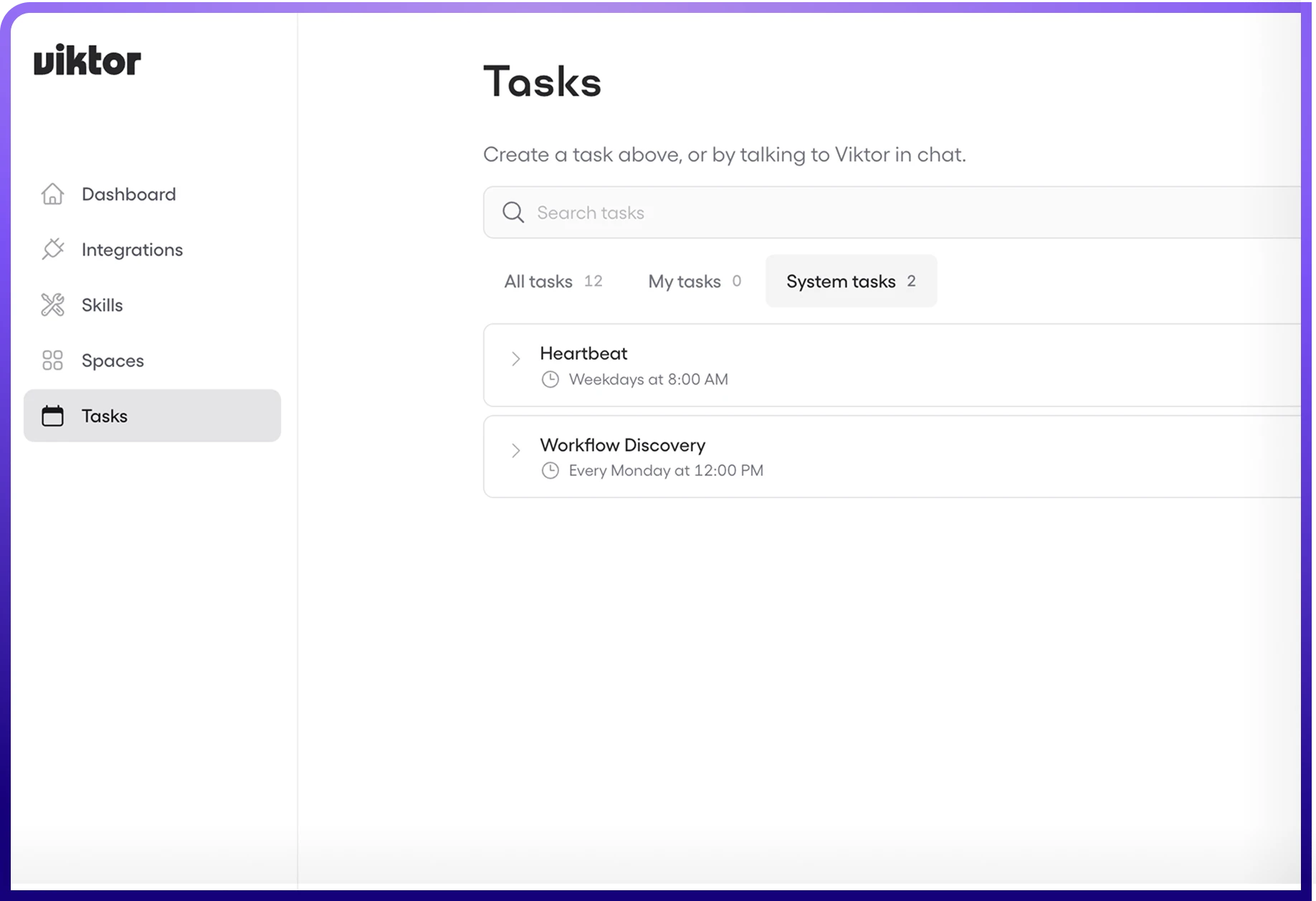
- Monitor, pause, edit, and delete scheduled tasks
- Keep scheduled task costs under control

 Get started for free
What is a scheduled task?
A task that runs automatically on a schedule you define. Set it once, Viktor handles the rest. Like a recurring calendar event, except instead of reminding you, Viktor actually does it.
Results land where you want them: Slack or Teams, email, or files.
What makes scheduled tasks powerful:

Always on. Runs whether you are online or not, overnight, weekends.
Consistent. Same task, same time, no variation.
Flexible. Anything Viktor can do once, he can do on repeat.
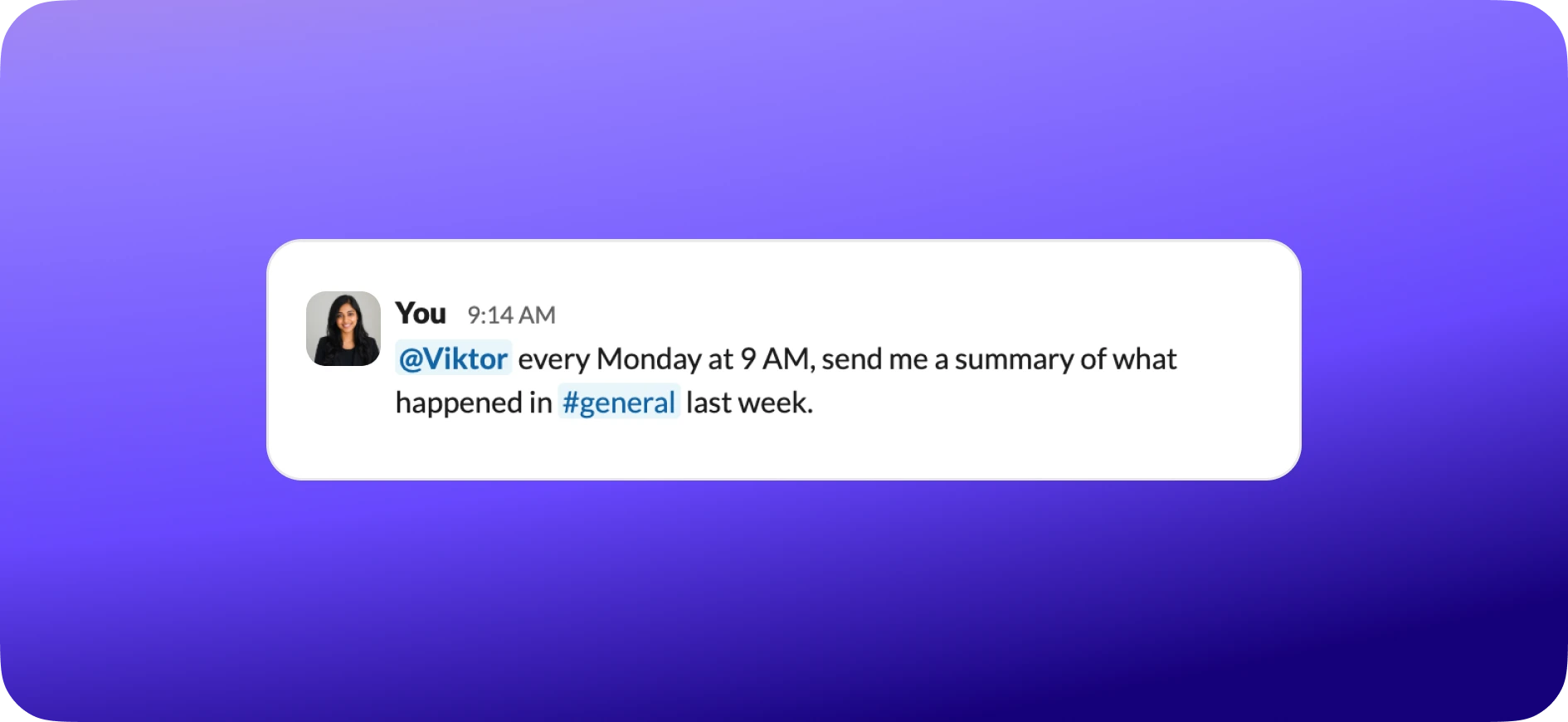
Viktor builds the scheduled task, confirms the schedule, and handles the rest.
The two types of scheduled task
Every scheduled task is one of two kinds, a script cron or an agent cron. Picking the right one is the whole game, and it is mostly about cost.
Script cron
The workhorse
- Runs a Python script directly
- No AI model, zero credits
- Same result every time
Best for: data syncs, API calls, templated messages, file operations.
Agent cron
The thinker
- Spins up a full AI on every run
- Can reason, write, decide
- Costs credits each run
Best for: written summaries, analysis, content drafting, multi-step decisions.
How to choose:
Default to script crons
Most recurring work, syncs, checks, fixed messages, needs no AI at all, so it should cost nothing. Only reach for an agent cron when the task truly needs to read, reason, or write. This one habit is what keeps automation affordable.
Script crons
The free workhorse. If a task does not need to think, make it a script cron and stop worrying about cost entirely.
0
credits per run
$0
monthly
Unlimited
runs per day
Real examples. Just describe what you want:
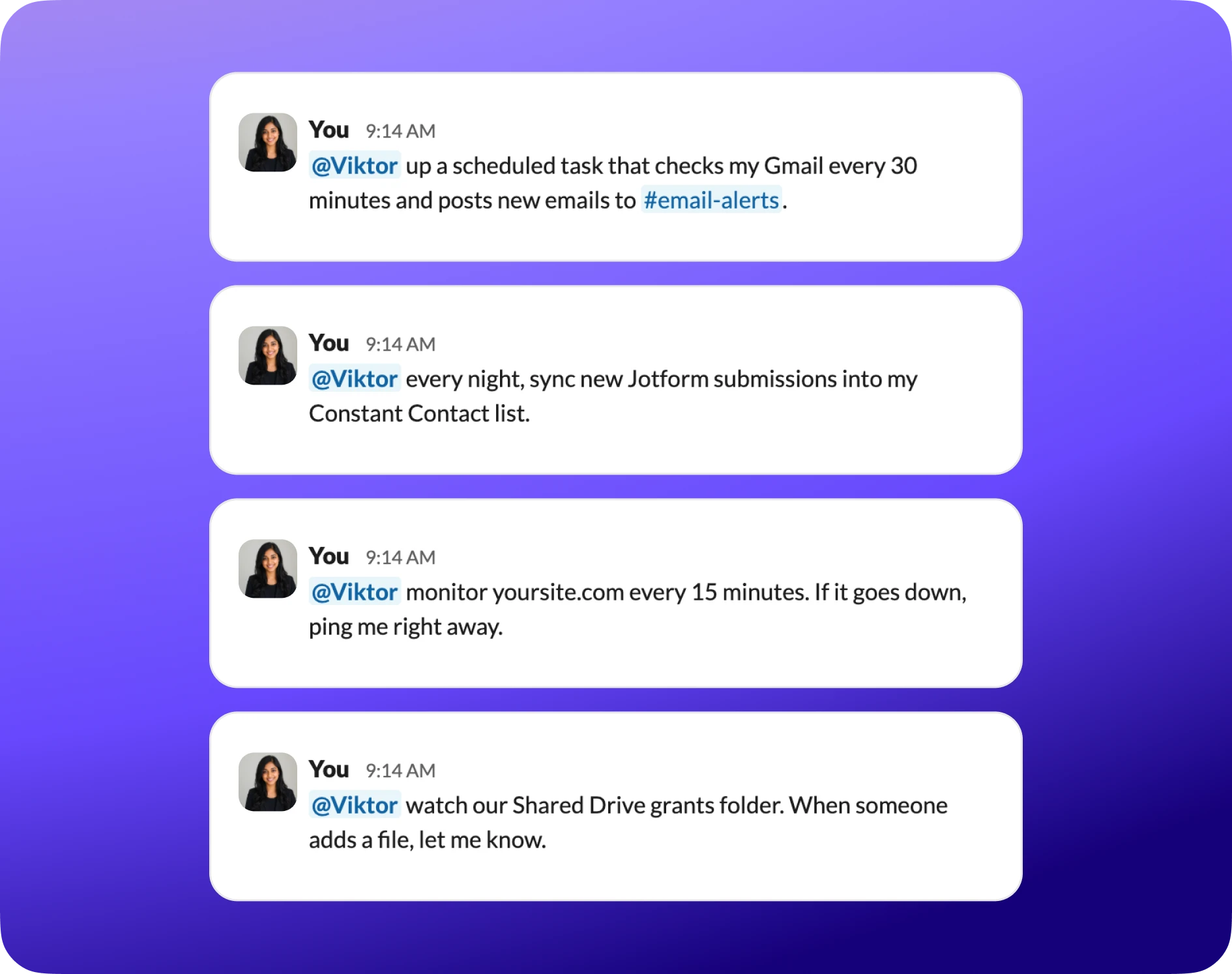
Those four cover an email inbox check, a CRM data sync, a website uptime monitor, and a Google Drive file watcher.
Under the hood
Viktor writes a Python script and schedules it. A pure script with no model call runs no AI, so it costs zero credits. You can run that kind of script cron every minute and never touch your credit balance. The one exception: if a script triggers work that does involve a model, for example handing off to an agent step, that part is not free.
Agent crons
When a task needs to read, write, or decide, you want an agent cron. It spins up a full AI on every run, so each run costs real credits. Two things drive that cost: which model runs, and how often it runs.
Model choice matters
Sonnet is the right default for routine digests and summaries. Save Opus for genuinely heavy reasoning and complex writing, since it costs more on every run. Viktor picks the right model for the task, or you can just say "Use the cheaper model for this one."
Where the model lever lives
Your default model is set under Settings, General, Default model. The choice is a preset plus a reasoning level: a Balanced preset built on Sonnet, or a Smartest preset built on Opus. That default applies everywhere, but any single thread or scheduled task can override it, so you can run one heavy task on Opus without changing the default for everything else.
Real examples. Here is the daily channel digest landing in a channel:
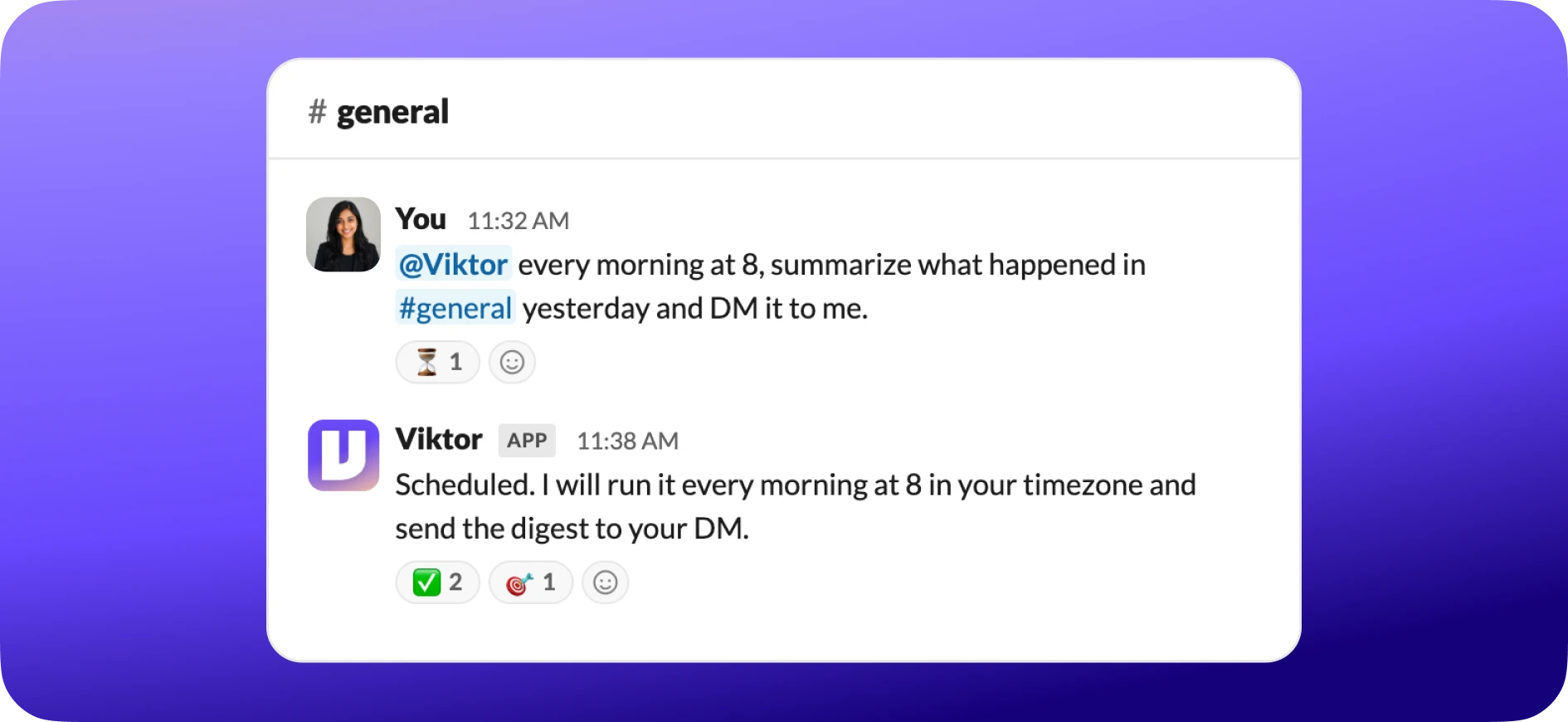
A few more agent crons people set up:
Weekly LinkedIn draft. "Every Monday morning, draft a LinkedIn post about our team's wins from last week. Send it to me first."
People ops digest. "Build a daily people ops digest. Post to #people_ops at 7 AM on weekdays."
Feedback analyzer. "Every Friday, analyze this week's #feedback and give me a themed report."
Condition scripts, the gatekeeper
If "default to script crons" is the first big idea, this is the second: do not let an agent run when there is nothing to do. A condition script is a lightweight, free check that runs before each scheduled task. If it passes, the task runs. If not, it skips that cycle, with nothing spent. A free check decides whether the paid work happens, so an agent never spins up just to tell you there was nothing to report.
Without a condition
The agent cron runs every morning, checks for new feedback, finds nothing, and posts "No new feedback today."
A full paid run, for nothing
With a condition
A free check runs first, sees no new messages, and skips. The agent never spins up.
No agent run, nothing spent
How it works:
Common conditions:
You do not write these yourself
Just tell Viktor "Only run this if there are new messages in #feedback" and he attaches the condition automatically.
What can you automate?
Almost anything you would hand a new hire as standing work. A sample, with the task type each tends to use:
Email sweep
SCRIPT OR AGENT
Daily usage report
AGENT
Website monitoring
SCRIPT
New member sync
SCRIPT
Content drafting
AGENT
Drive watcher
SCRIPT
Calendar briefing
AGENT
Channel digest
AGENT
Form processor
SCRIPT
Competitor watch
AGENT
Data cleanup
SCRIPT
Milestone alerts
SCRIPT
Not sure which type?
Describe what you want and Viktor recommends the type, writes the code or prompt, and sets the schedule. You do not need to know Python or cron syntax.
Scheduling: frequencies and timing
How often a scheduled task runs decides what it costs. Script crons are free at any frequency. Agent crons spin up a full AI every run, so the more often they fire, the faster they add up. This table is worth a real look.
Do
- Start with the lowest frequency that works
- Use weekdays-only for work tasks
- Add conditions to skip empty runs
- Run agent crons 1x/day or less
- Use script crons for anything frequent
Don't
- Run agent crons hourly
- Schedule weekend runs for work tasks
- Stack multiple tasks at the same minute
- Set "every 5 minutes" for agent crons
- Forget to check usage after the first week
Just say it in plain English
"Every weekday at 9 AM Eastern," "Twice a day, morning and evening," or "Every Monday and Thursday at noon." Viktor figures out the cron expression.
Managing your scheduled tasks
Once a scheduled task is running, you stay in control. The lifecycle of any scheduled task looks like this:
What you can do:
Pro tip
Ask "What scheduled tasks do I have running?" for a full list with schedules, types, and recent activity. The fastest way to audit your automations.
Cost control and optimization
Scheduled tasks are where credits quietly add up, because they run without you watching. A little discipline here is worth more than anywhere else in Viktor.
The setups, ranked from worst to best value:
Five rules that keep costs in check:
- 1Script first. If it does not need reasoning, make it a script cron. Always free.
- 2Use Sonnet, not Opus. It costs less per run and handles routine digests and reports fine.
- 3Add conditions. Never let an agent cron run with nothing to do. Condition scripts are free.
- 4Reduce frequency. Start at 1x/day. Only increase if you truly need faster turnaround.
- 5Audit monthly. Ask "Audit my scheduled tasks" and Viktor flags the expensive runs.
A real example
One team cut a status report's cost by roughly 14x just by switching from the most powerful model several times a day to a lighter model once a day. Same report, same quality.
Common questions
Do I need to know Python?
No. Describe what you want in plain English and Viktor writes the code.
Do scheduled tasks run when I am offline?
Yes. They run on Viktor's servers on a timer, whether you are online or not.
Can I have multiple scheduled tasks?
Yes, there is no hard limit. Just watch your total usage if you have several agent crons running.
What if a scheduled task fails?
Viktor logs it and notifies you in your chat, then retries on the next run. You can see the history at app.viktor.com/settings/tasks.
Can a scheduled task message people outside my team?
Yes, with an email integration. Viktor asks for approval before sending unless you set it to auto-send.
Can I test a scheduled task before it goes live?
Yes. Say "run it once now" or "trigger it manually" to see the result first.
Will Viktor tell me if a scheduled task costs too much?
He tracks usage per task. Ask "How much is my daily report costing?" any time.
Can I pause without deleting?
Yes. Say "pause my daily digest," then "resume" whenever you want it back.
Troubleshooting
Quick debug
Message "Why didn't my [task name] run?" and Viktor checks the log, condition status, and schedule to explain exactly what happened.
Ready to automate?
The fastest way to start is to ask. In Slack or Teams, tell Viktor: "Set up a daily report of what happened in #general." He chooses the task type, sets the schedule, and has it running in minutes.
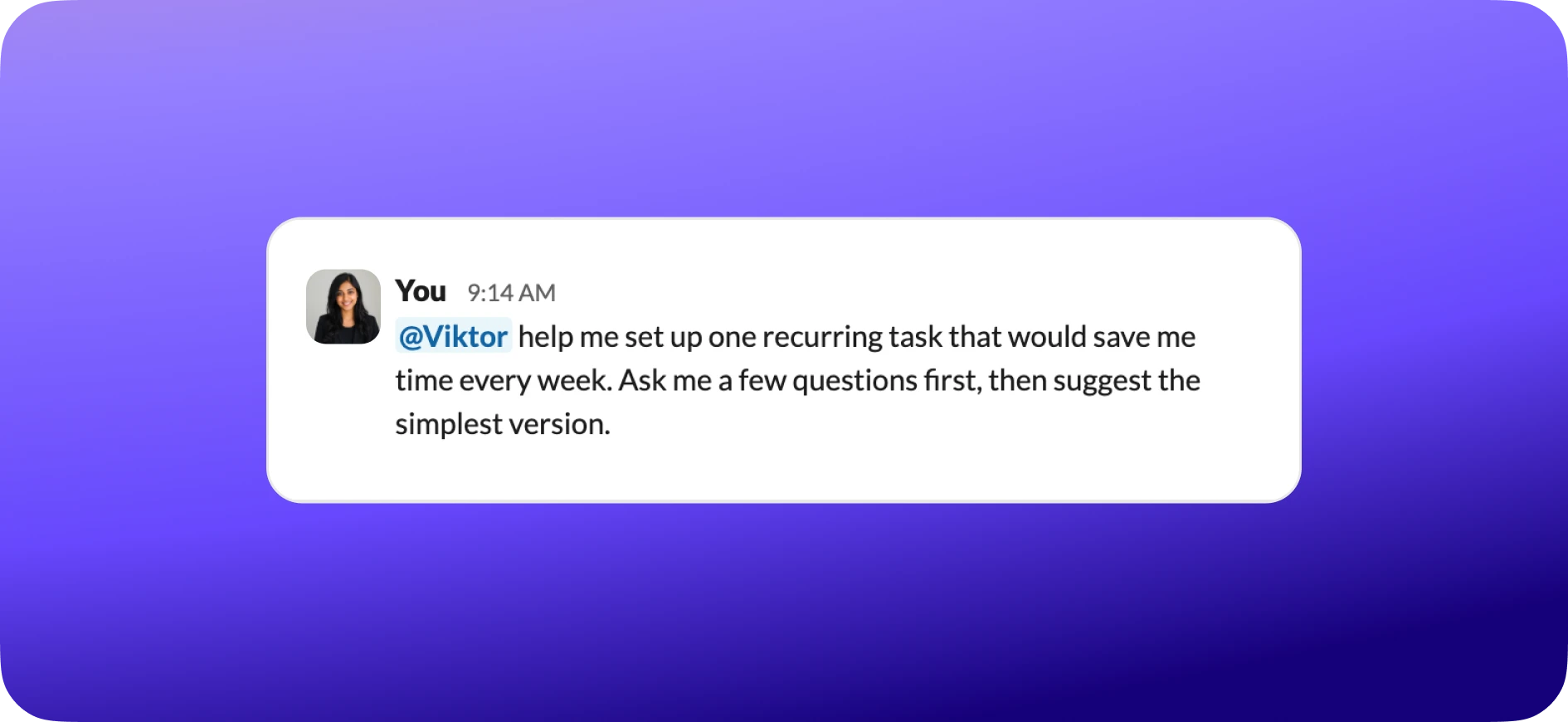
Not sure where to begin? This is the best possible opening message: